OnePACS administrators can use a CSV file to create, update, and manage Post-Processing Rules in bulk.
Important Note: File size must not exceed 5MB.
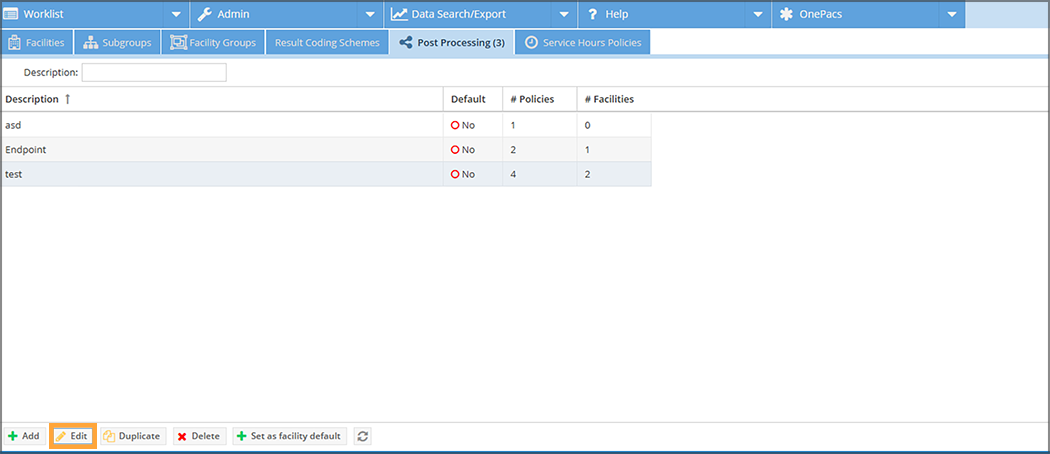
To export a CSV file of current Post-Processing Rules, navigate to Admin > Facilities > Post-Processing. Select the desired Post-Processing Rules group and click Edit.
In the Edit window, click the Export button.
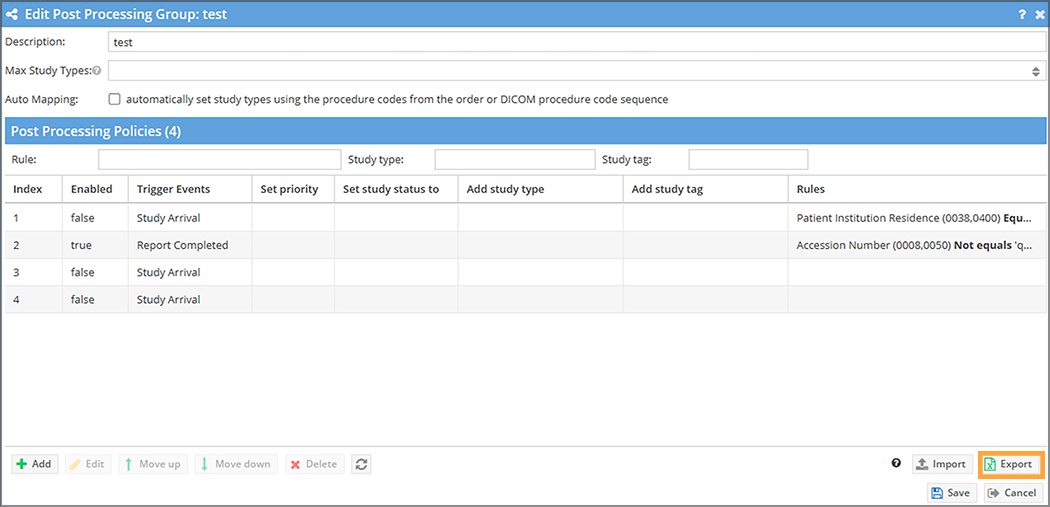
Update the exported CSV file with changes and new rules as desired. Save the CSV file and follow the import steps to import and perform a bulk update.
The exported CSV file of Post-Processing Rules contains one row per post-processing policy, as well as the following columns.
Important Note: The exported CSV file contains all columns, including hidden columns.
| Column | Description | Examples |
| ID | Internal primary key (PK) of the policy | 634 |
| Index | Execution order within the group | 1 |
| Enabled | Whether or not the policy is active | true, false |
| Trigger Events | Comma-separated list of events that activate this policy | Study Arrival, Order Association |
| Set stat status / set priority | Stat status to apply. Special composite values include ASAP (increases priority only) and Stat+ (STAT + increased priority). | STAT, Stat+, ASAP |
| Set study status to | Study status to assign when the policy fires | UNREAD, STAT_UNREAD |
| Set requested read type to | Read type to request | FINAL, PRELIMINARY |
| Set laterality to | Laterality to assign | LEFT, RIGHT, BILATERAL |
| Set IV contrast to | Contrast status to assign | WITH_CONTRAST, WITHOUT_CONTRAST |
| Set number of views to | Number of views to assign | 2 |
| Add study type | Human-friendly display name of the study type to add | CT Head |
| Add Study Type ID | Internal FK of the study type (used for re-import) | 40317 |
| Add study tag | Human-friendly display name of the study tag to add | Urgent |
| Add Study Tag ID | Internal FK of the study tag (used for re-import) | 1 |
| Invoke automation task | Human-friendly display name of the workflow / standard note to invoke | Auto-Assign to Pool |
| Apply Standard Note ID | Internal FK of the standard note (used for re-import) | 12345 |
| Case alert | Free-text message for a case alert to create | Review urgently |
| Order Procedure Codes | Comma-separated procedure codes Important Note: This is a legacy column included for backward compatibility with previous versions. | 71046,71047 |
| Rules | Multi-line text describing all matching rules for the policy. See Rules Column Format for additional information. | study description equals 'CT HEAD' |
Prior to importing a CSV of Post-Processing Rules, ensure that the file meets the following import standards.
The uploaded CSV must contain all required columns. Users should ensure that they also include any relevant columns from the available options in the table below. Column headers are matched case-insensitively, with flexible naming. Users may select from any of the alternative CSV headers noted parenthetically in the Column Name column below.
Important Note: If a row contains neither Rules nor Procedure Codes, and if it specifies no modifiers (such as Study Status), the row will fail to import.
| Column Name | Required ? | Description | Notes/Examples |
| Trigger Events (Triggers, Trigger Types) | Yes | Comma-separated list of events that activate this policy | ex: Study Arrival, Order Association Additional information on Trigger Events is available here. |
| Rules (Rule) | Yes (if no Order Procedure Codes or modifier columns) | Multi-line text describing all matching rules for the policy | Required unless one or more modifier columns (e.g. Study Status or Stat Status) are provided |
| Order Procedure Codes (Order Procedure Code, Procedure Code, Procedure Codes) | Yes (if no Rules or modifier columns) | Comma-separated procedure codes (legacy) | Required unless one or more modifier columns (e.g. Study Status or Stat Status) are provided |
| Enabled (Active) | No | Whether or not the policy is active | Defaults to False if omitted |
| Set stat status / Set priority (Set priority, Stat Status, Increase Priority) | No | Stat status to apply. Special composite values include ASAP (increases priority only) and Stat+ (STAT + increased priority). | ex: STAT, SUPER_STAT, ASAP, Stat+ |
| Set study status (Set Study Status To, Study Status) | No | Study status to assign when the policy fires | ex: UNREAD, STAT_UNREAD |
| Set requested read type to (Set Requested Read Type, Requested Read Type, Read Type) | No | Read type to request | ex: FINAL, PRELIMINARY |
| Set laterality to (Laterality, Set Laterality) | No | Laterality to assign | ex: LEFT, RIGHT, BILATERAL |
| Set IV contrast to (Set Contrast Status, Contrast Status) | No | Contrast status to assign | ex: WITH_CONTRAST, WITHOUT_CONTRAST |
| Set number of views to (Number of Views, Set Number of Views) | No | Number of views to assign | ex: 2 |
| Add Study Type ID (Add Study Type, Study Type ID, Study Type) | No | Internal FK of the study type | Study Type ID must exist in the target radiology group |
| Add Study Tag ID (Add Study Tag, Study Tag ID, Study Tag) | No | Internal Primary Key (PK) of the study tag | Study tag must exist in the target radiology group |
| Apply Standard Note ID (Apply Standard Note, Standard Note, Standard Note ID, Invoke automation task) | No | Internal Primary Key (PK) of the standard note | Standard note must exist in the target radiology group |
| Case alert (Create Case Alert, Case Alert Text) | No | Free-text message for a case alert to create | ex: Review urgently |
The Trigger Events column accepts a comma-separated list of the following case-sensitive values:
Each line in the Rules cell represents one matching rule. The format is as follows: [property name] [comparison] ['value']. For example:
OnePACS supports the following case-insensitive property names in the Rules column:
| Property Name(s) | Notes |
| patient ID | |
| order procedure code | |
| accession number | |
| modality | Use this property name for a single series modality |
| modalities in study | Use this property name for study-level modalities |
| referring physician, referring physician name | |
| study description | |
| patient name | |
| received time, study arrival time | Uses time range format HH:mm:ssLSSS,HH:mm,ss.SSS. ex: study arrival time is between the following times '09:00:00.000,17.00.00.000' Also accepts human-friendly format with SOD (start of day = 00:00) and EOD (end of day = 23:59). ex: study arrival time is between the following times 'SOD to 17:00'. |
| institution name | |
| body part | |
| station name | |
| protocol name | |
| study instance uid | |
| ai result, ai results | |
| study stat status, stat status | |
| order priority | |
| order reason for exam | |
| order patient history | |
| confirmation patient history | |
| patient institution residence | |
| custom order field | Include the field name in parentheses: `custom order field (myFieldName) equals 'value'` |
| study type description | |
| study type billing code |
Users can reference properties from DICOM tags not listed by using the relevant tag notation. For example:
OnePACS supports the following comparison operators in the Rules column. Use only the comparison operators that are appropriate to the chosen rule type:
To import a CSV of Post-Processing Rules, navigate to Admin > Facilities > Post-Processing. Select the desired Post-Processing Rules group and click Edit.
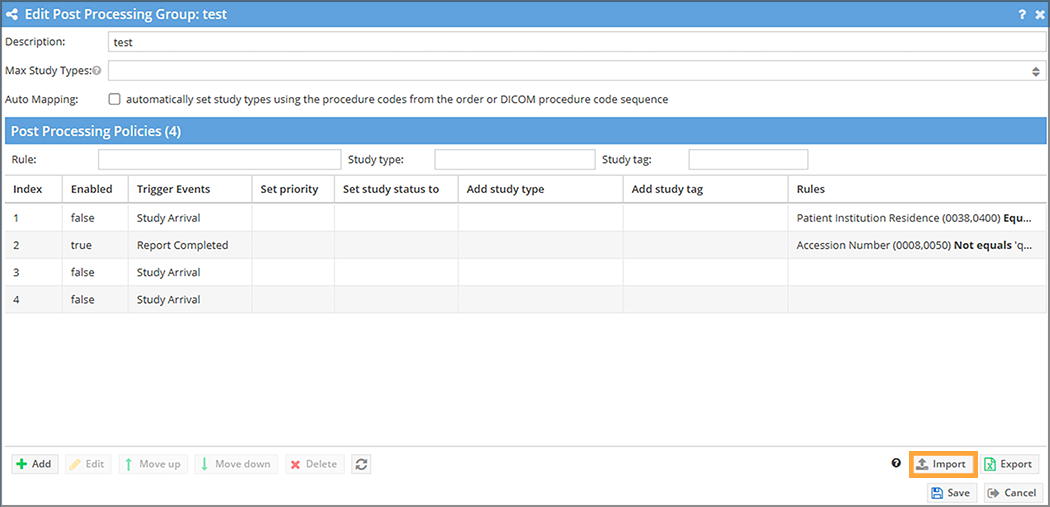
In the Edit window, click the Import button and select the desired CSV file when prompted.
A progress bar displays during the import process. Upon successful completion of the import, a success message displays. The rules display in the relevant Post-Processing Rules list.
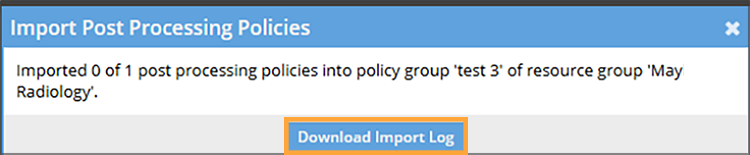
Rows of Post-Processing Rules data that fail during validation or processing are not imported. Failed rows do not prevent the system from importing successful rows. If any rows fail, the confirmation window displays the number of successful uploads and the total number of attempted uploads. Newly imported policies display with a highlight until the user refreshes the page.
Click the Download Import Log button and refer to the Import Log CSV for detailed information about successes and failures during the import process.
Common errors include:
Error messages display in the Download Import Log to guide troubleshooting.