...
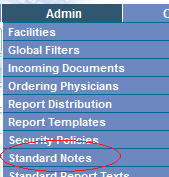
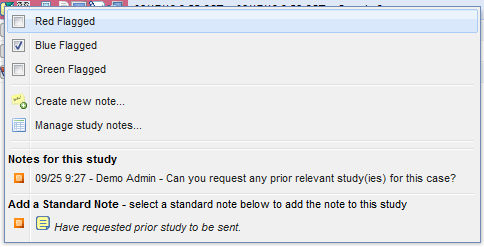
To configure a standard note, administrators select the "Admin" followed by the "Standard Notes" Admin -> Standard Study Notes/Flags menu options. They can also open the configuration by clicking on the study notes icon on the worklist and selecting the "Manage standard notes" option. Once configured, a standard note will appear for the users configured to use it on the study notes menu on the worklist and also on the manage study notes window by selecting the standard note from the arrow dropdown on the "Add" button.
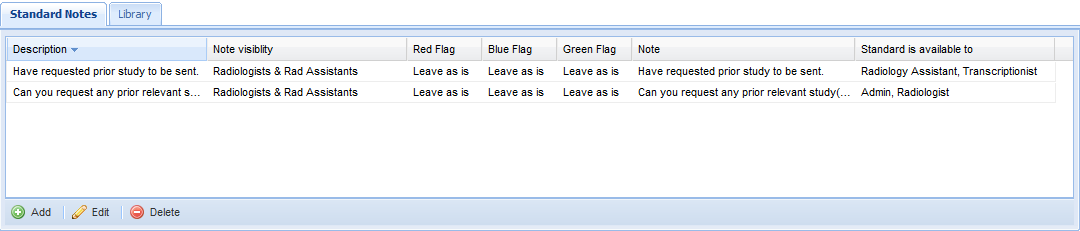
The manage standard window will open a show a list of standard notes. A user can add, edit, and delete standard notes using the buttons on the bottom of the list.
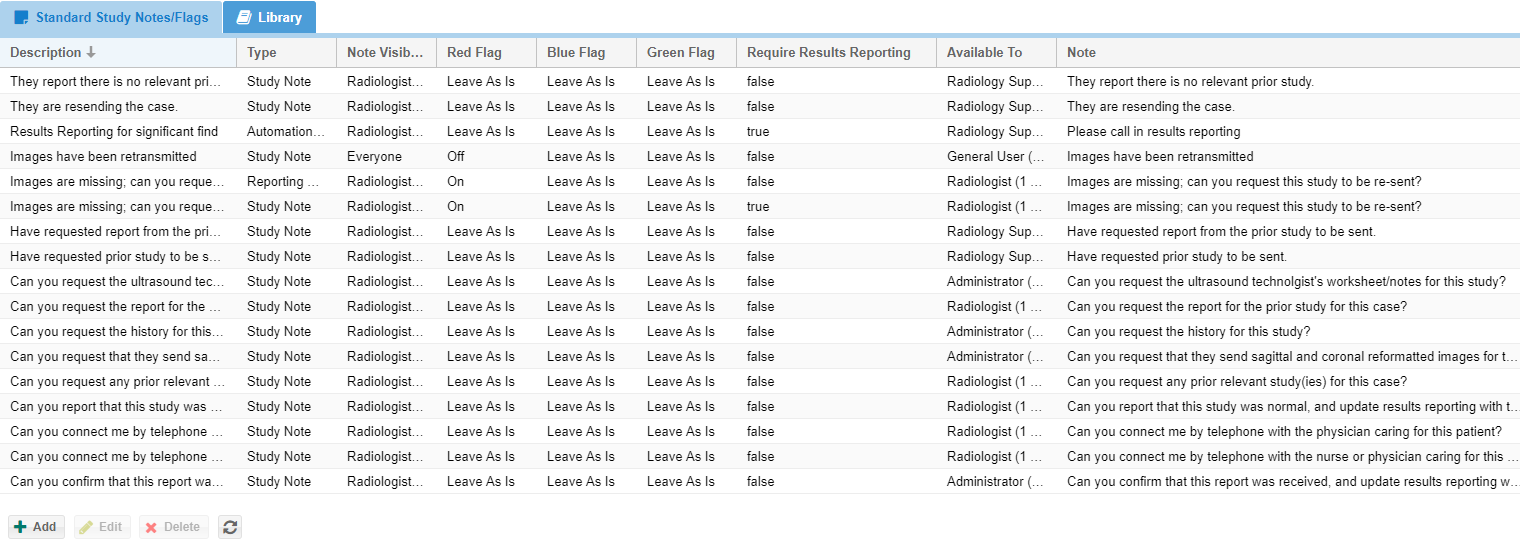
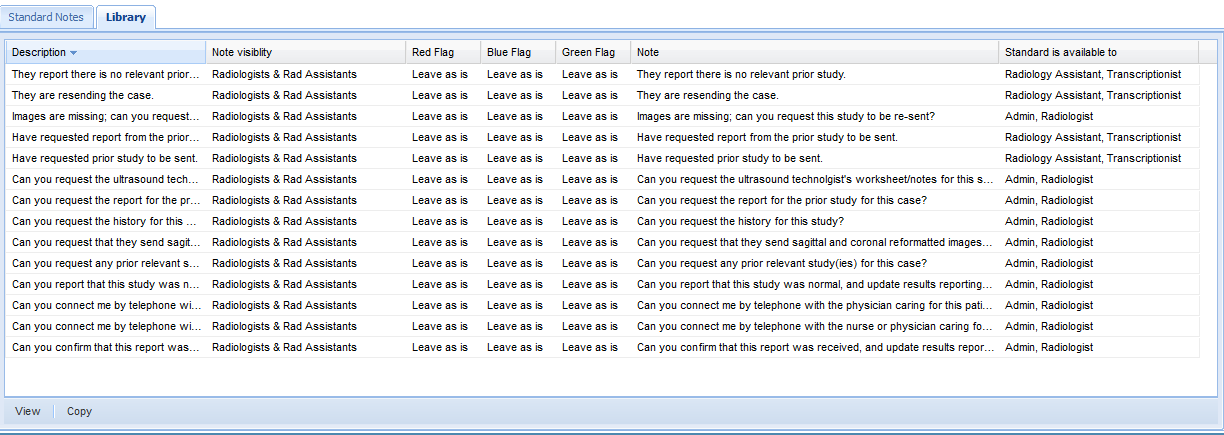
The library tab has some OnePacs predefined standard notes that may be copied if they fit into the groups workflow. Select a standard note inside of the library list and press the "Copy" button to copy the standard note so that it may be used by your group. You may edit the note from the "Standard Notes" tab after you copy it from the library.

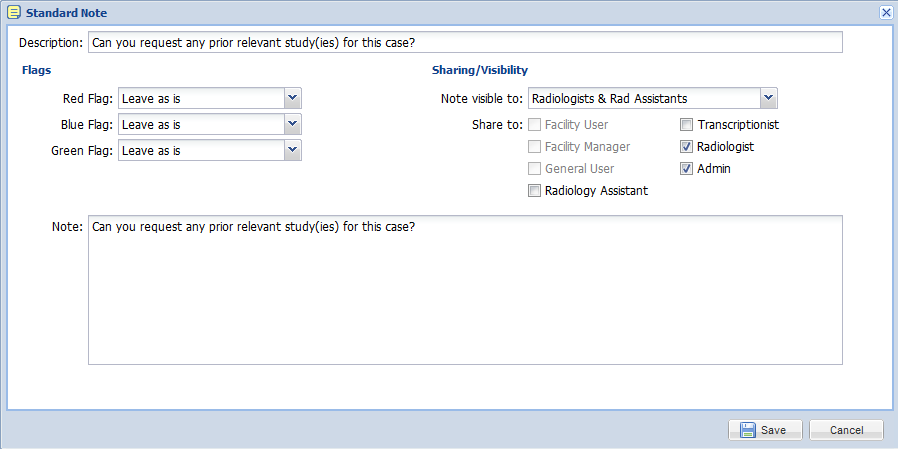
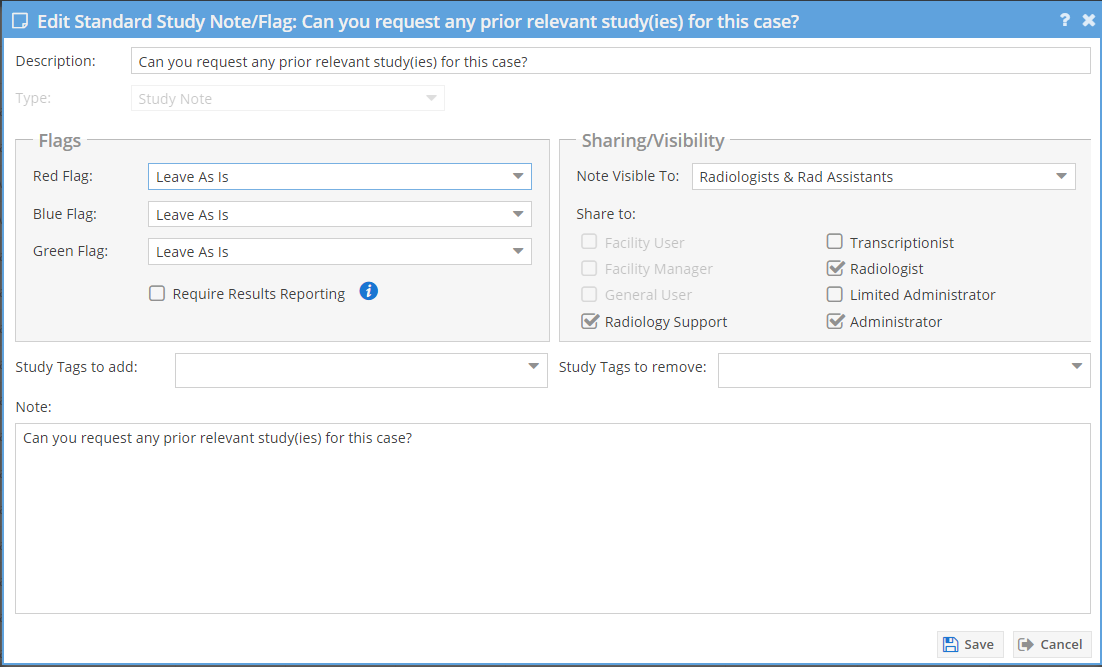
Use the "Add" or "Edit" button on the "Standard Notes" tab to create or edit a standard note. A user should configure the text of the note, how the flag options will be changed, the note audience, and which user types will have access to the note.
Reporting Exceptions
...
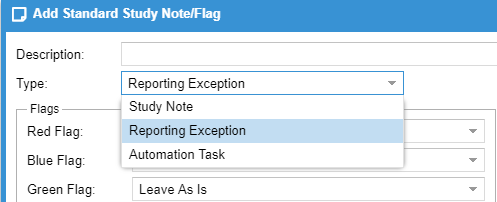
Reporting exceptions are configured just like other standard notes but are denoted with the type of "Reporting Exception."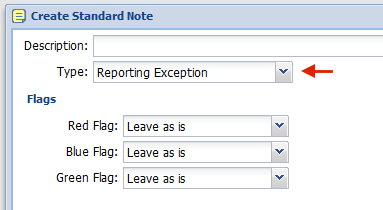
Automation Tasks
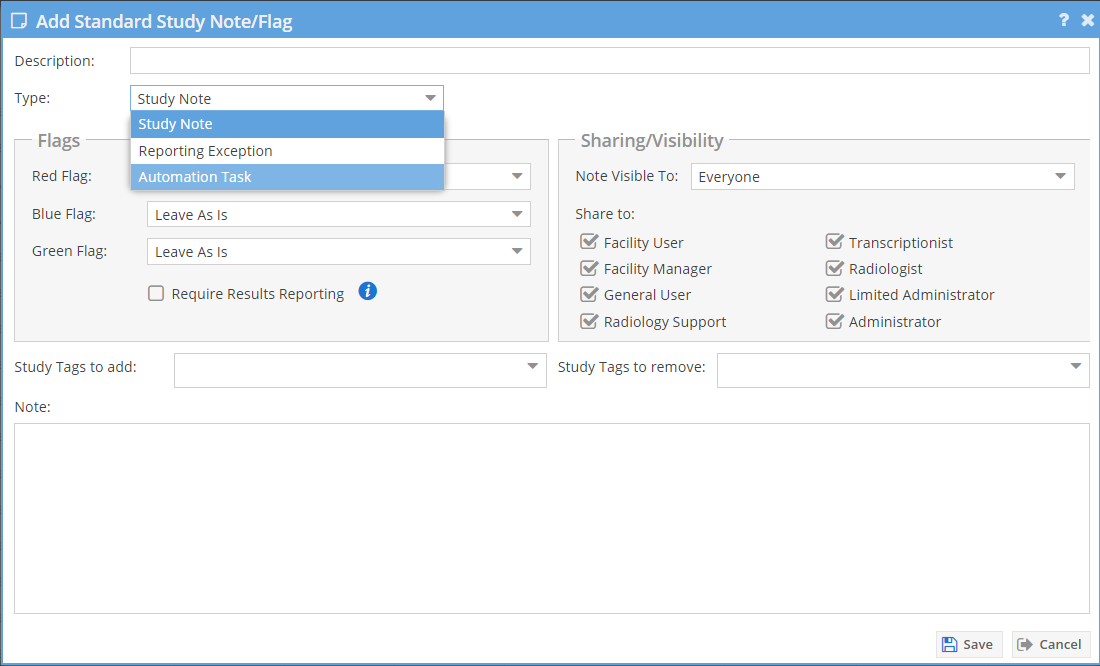
"Automation tasks" are standard note/flag configurations that may be associated with post processing rules or result codes to automate workflow. to assist with workflows.
Automation tasks do not require a study note; they may consist of flags only.
Critical Finding Automation Tasks
A special automation task can be configured on the System Configuration page. In the note one can use the variable
$CRITICAL_FINDINGS
to assist in automating critical findings. When a finding is marked as critical in the report generator the workflow is applied when the report is submitted.
Report generator finding.

For example.
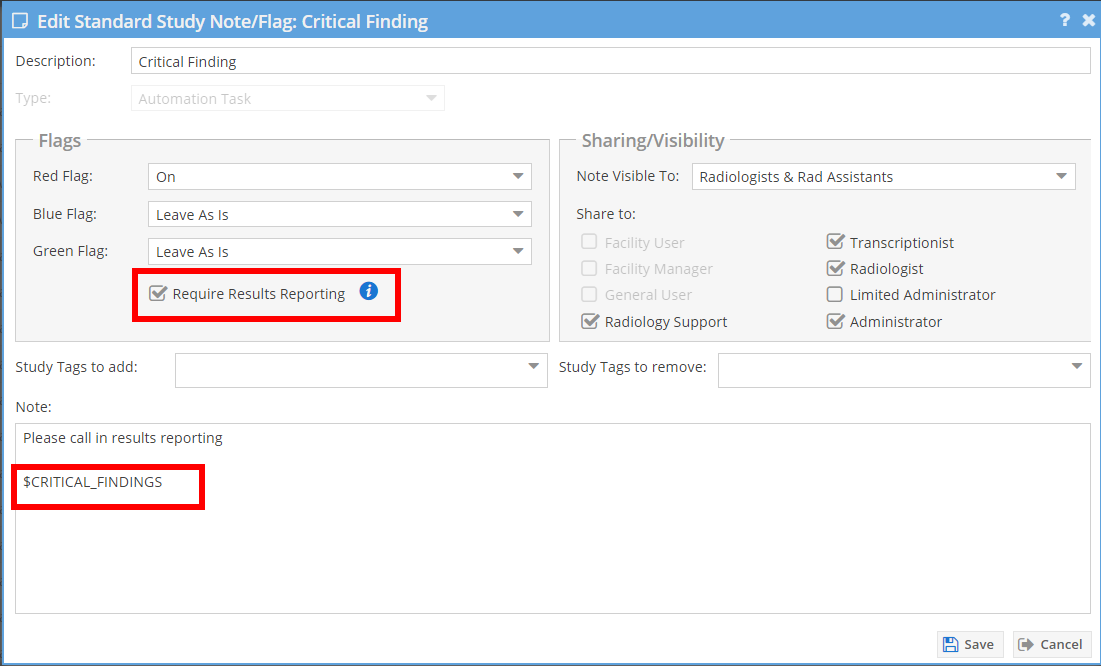
This would flag the case as needing results reporting and leave a study note with the critical finding on the study.