| Tip |
|---|
This page is related to the OnePacs Study Retriever which is installed by default along with the OnePacs Workstation software for macOS or Windows. It may also be used with third party viewers. If you're looking for information the OnePacs Desktop Viewers, please see this page. |
System Requirements
Windows
Operating systemOS: 64-bit Windows 10 or Windows
11
Memory: 8 GB RAM (16 GB+ recommended)
Hard Drive: 100 GB or more free space is recommended
Processor: A recent/modern high-end multicore processor is recommended
Mac OS X
OS: macOS 10.14 through macOS 12 Monterey
Memory: 8 GB RAM (16 GB+ recommended)
Hard Drive: 100 GB or more free space is recommended
Processor:
Mac OS X
- A MacOS X version of the OnePacs Study Retriever is available. Please refer to the Mac OS X page for installation instructions. The features and functionality of the Study Retriever on Mac OS X are identical to the Windows version.
A recent/modern high-end multicore processor is recommended
Other Requirements
For diagnostic image viewing, appropriate diagnostic-quality and regulation-compliant monitors should be used.
For worklist viewing and report editing, video resolution of at least 1024 x 800 is recommended.
Network bandwidth: Minimum bandwidth of 5 Mbps. 100 Mbps or greater is recommended.
The OnePacs license agreement requires physical access restrictions limiting physical access to the PC to authorized personnel with a legitimate need to access the equipment and/or the use of whole hard disk encryption (e.g. BitLocker on Windows or FileVault on macOS).
See the Security Considerations page for other requirements and best practice recommendations on using OnePacs securely.
Authentication
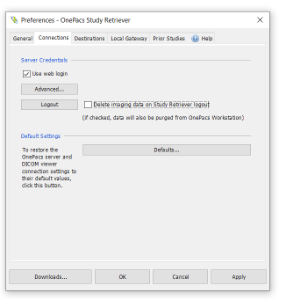
Credentials for downloading studies may be set through the "Connections" tab in Preferences
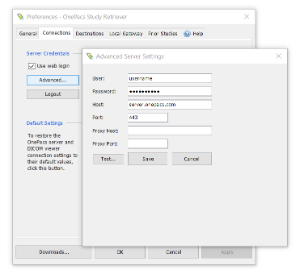
To store permanent credentials for use when there is no concurrent web-based OnePacs session, the "Advanced" settings button may be used to configure stored credentials
Alternatively, by checking the "Web login" feature, also available in the "Connections" tab of Preferences, when a user logs in to OnePacs through a web browser, the Study Retriever will automatically log in to OnePacs as that same user, to facilitate downloading studies for that user.
Download Management
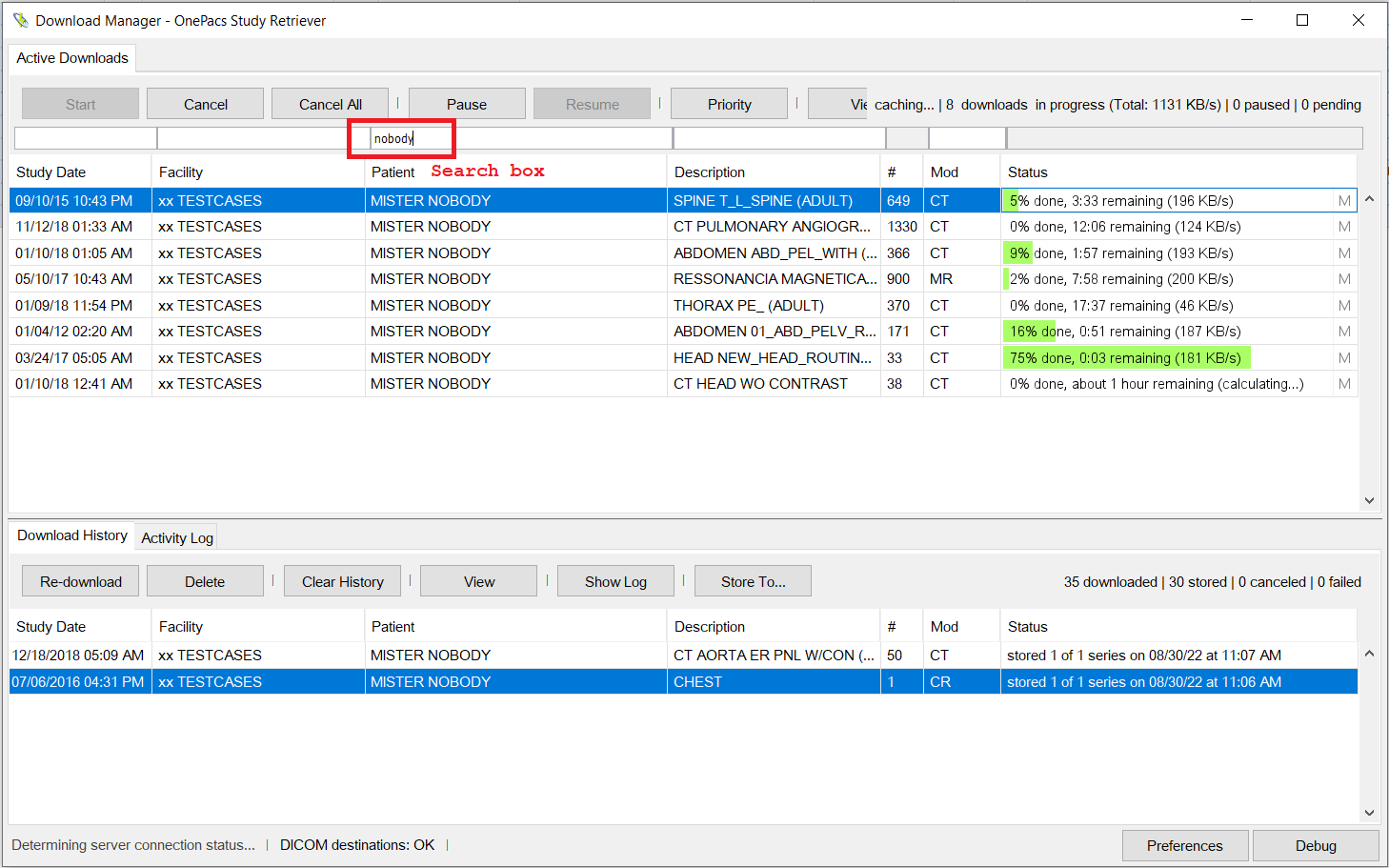
By selecting the "Manage downloads..." option from the study retriever right-click menu (in Windows) or the drop-down menu (in macOS), the Download Management window appears.
This provides information regarding downloads that are in progress, or in the queue to download when download slots are available. Individual study downloads can be started, stopped, paused, and resumed from this view. It is possible to filter the list of downloads in progress or scheduled by typing search text into the fields above each column in the active/scheduled downloads list.
Studies that have already been downloaded may be re-downloaded, or stored to additional DICOM destinations, using the list of completed downloads at the bottom portion of the download manager view.
Debug logs may be uploaded to OnePacs support by clicking on the "Debug..." icon in the lower right.
Related Content
| Children Display | ||||
|---|---|---|---|---|
|